Learn how to use Pebbi

Need help with anything? Get in touch via our Contact page.

Jump to a section

Getting started

Getting started screenshot

Getting started

Getting started

A quick walkthrough of the core ideas: shared care, one timeline, and calmer handovers.

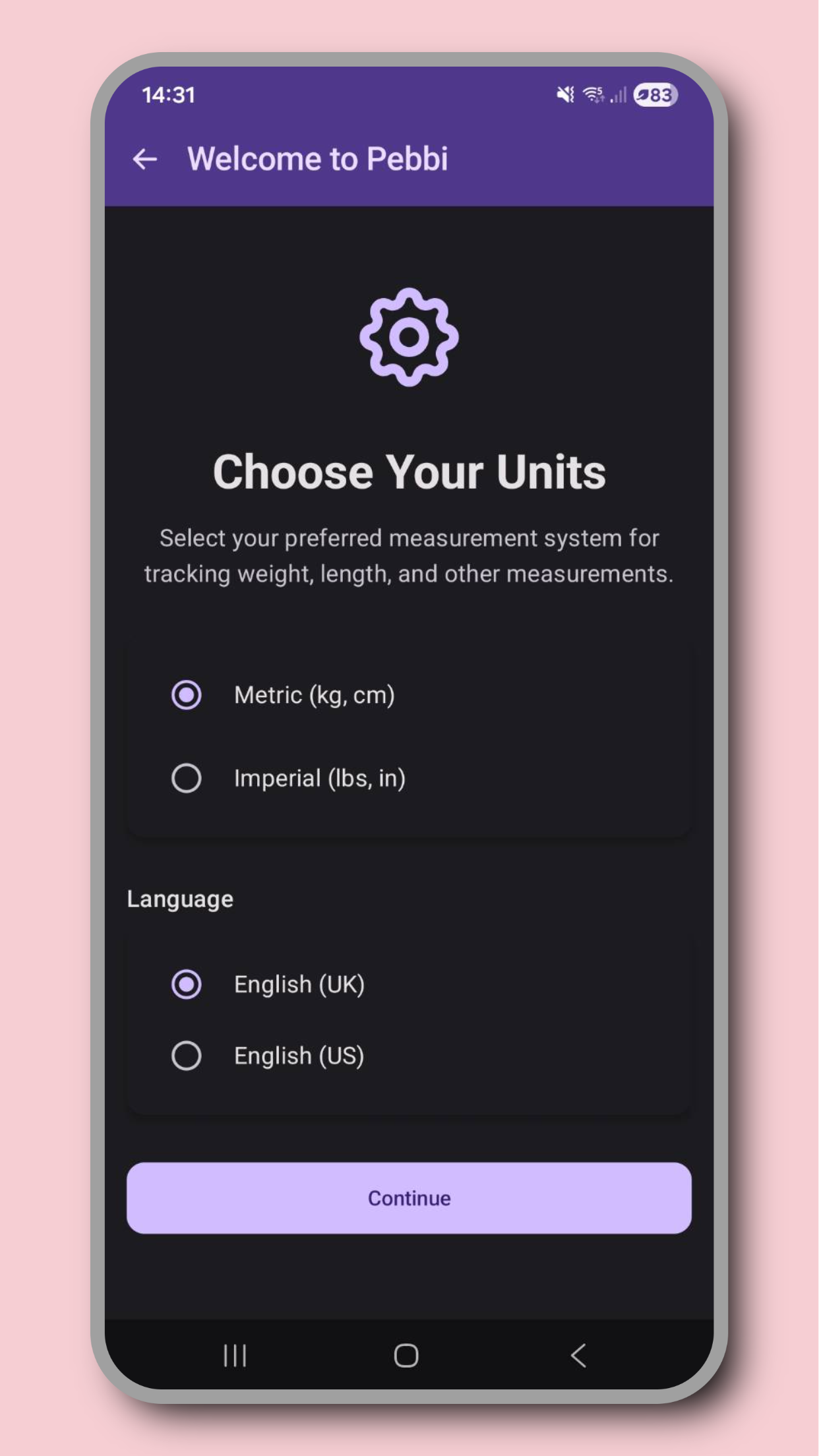
Opening the app for the first time will take you through a series of onboarding steps to select your settings and preferences. Here, you can select your app theme and units of measurement, enable notifications, and complete other general setup steps. You only have to do this once, but you can change any of these settings later in the settings menu.

Setup

Adding a baby screenshot

Setup

Adding a baby

Create your baby profile so every caregiver is logging into the same shared story.

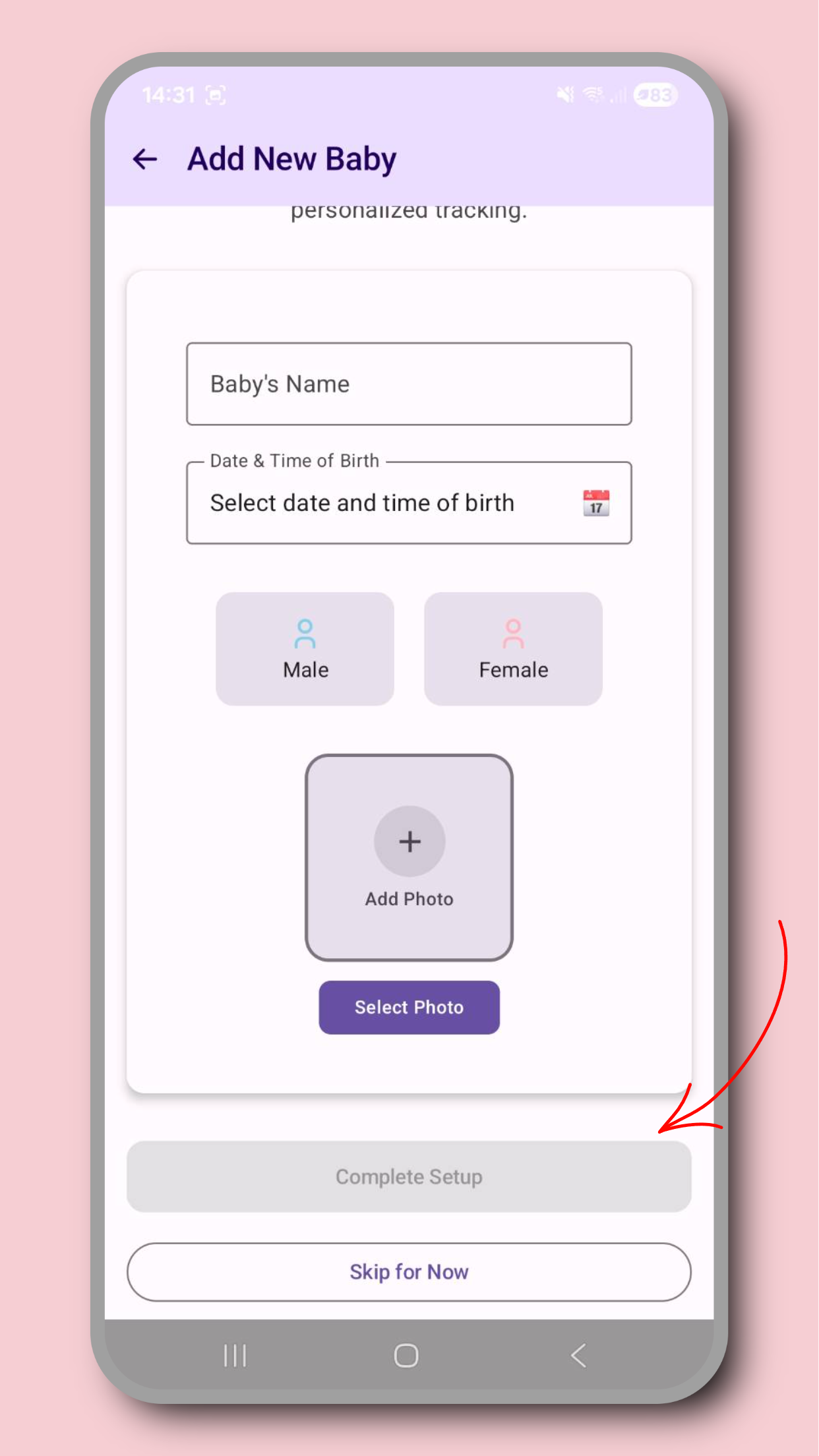
You will be prompted to add your first baby as part of onboarding, or you can do so later through the dashboard top menu. Here, you can enter your baby's name, sex and birth date, along with choosing your favourite photo of them to display on your dashboard. You can change their photo at any time by tapping the photo on the dashboard. Once you've added a baby you'll unlock the full dashboard, allowing you to add, view and delete events.
Managing multiple babies screenshot

Setup

Managing multiple babies

Track multiple babies and quickly switch your dashboard between them.

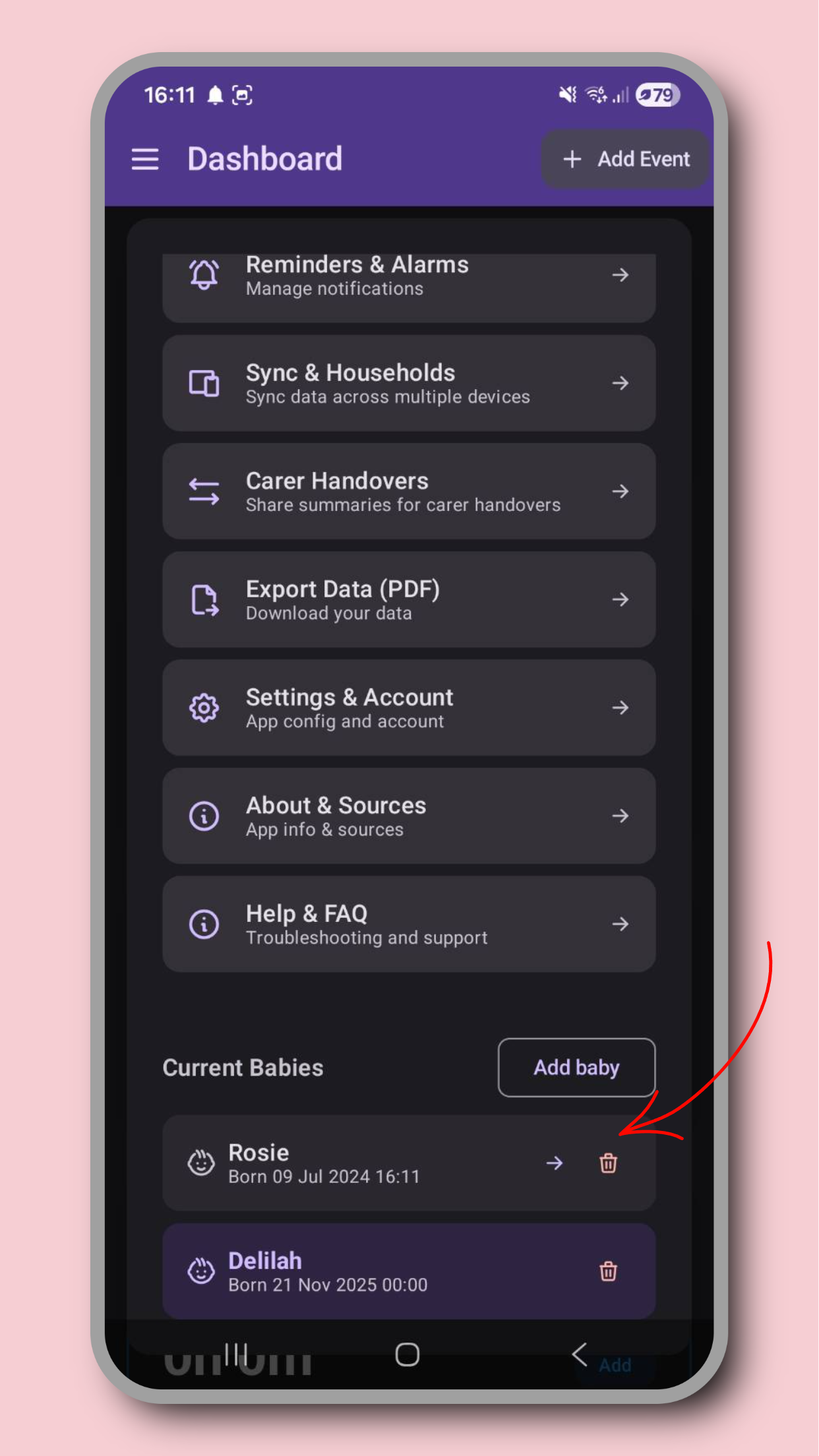
The free plan supports 1 baby. Pebbi Premium Household unlocks the ability to track up to 5 babies at the same time. You can do this via the dashboard top menu. Scrolling to the bottom of this menu will show you all of your logged babies, along with an icon per baby to allow you to either delete the baby, or switch your dashboard to show a specific baby's data.

Logging

Logging events screenshot

Logging

Logging events

Log feeds, sleep, nappies, meds, symptoms, and notes in seconds without breaking your flow.

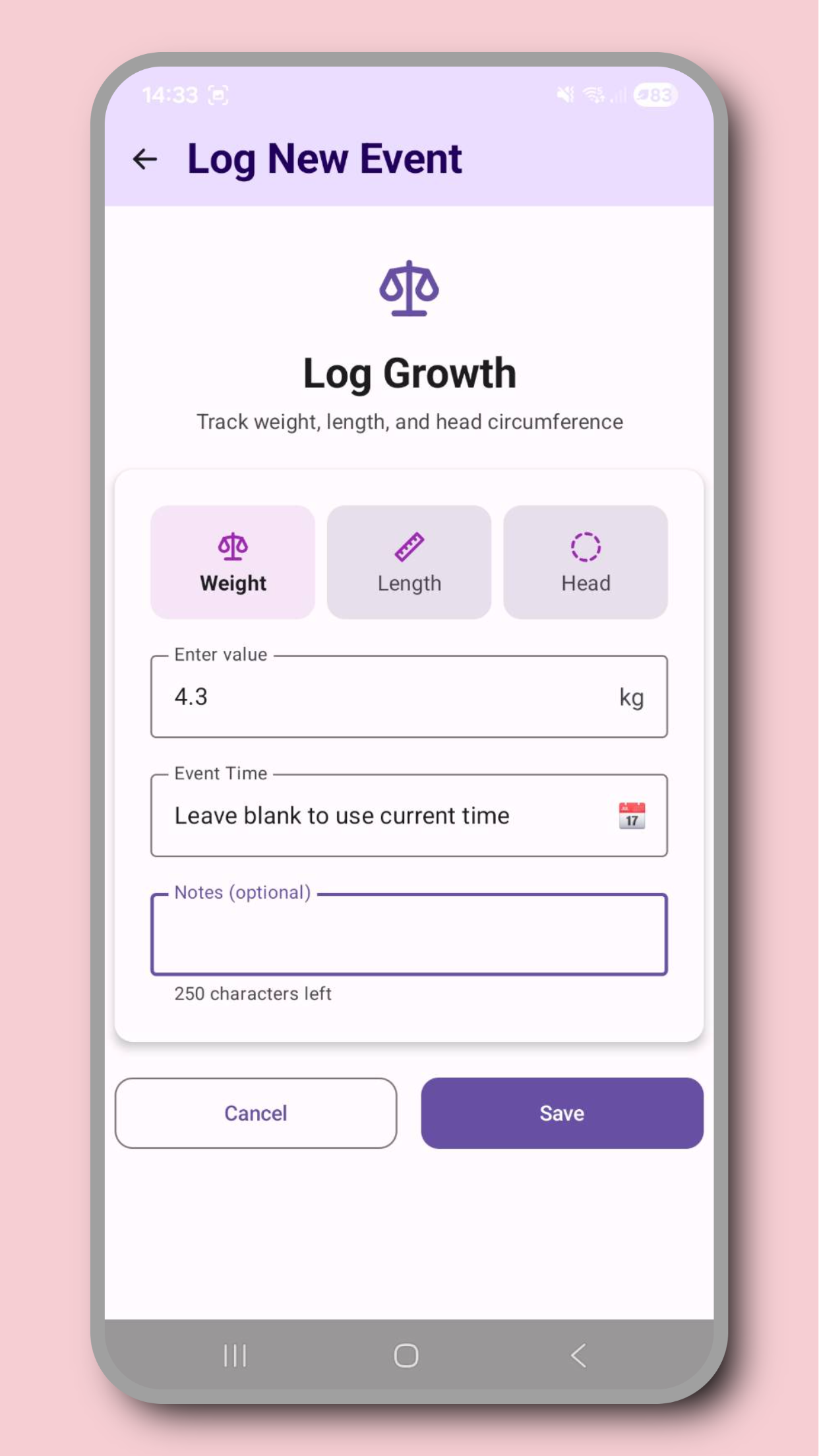
You can add events using the "Add" button in the top right of the dashboard, the button on each dashboard widget, or from within a history page by tapping on a specific widget. Each event type logs different data. For example a sleep can track the duration and type of sleep, while milestones track important development stages like a baby's first smile. Symptoms allow you to track illness, rashes, temperatures and other medical events, including attaching photos which can be viewed later by all household members.

Timeline

Viewing events screenshot

Timeline

Viewing events

See what happened while you were away and what's due next at a glance.

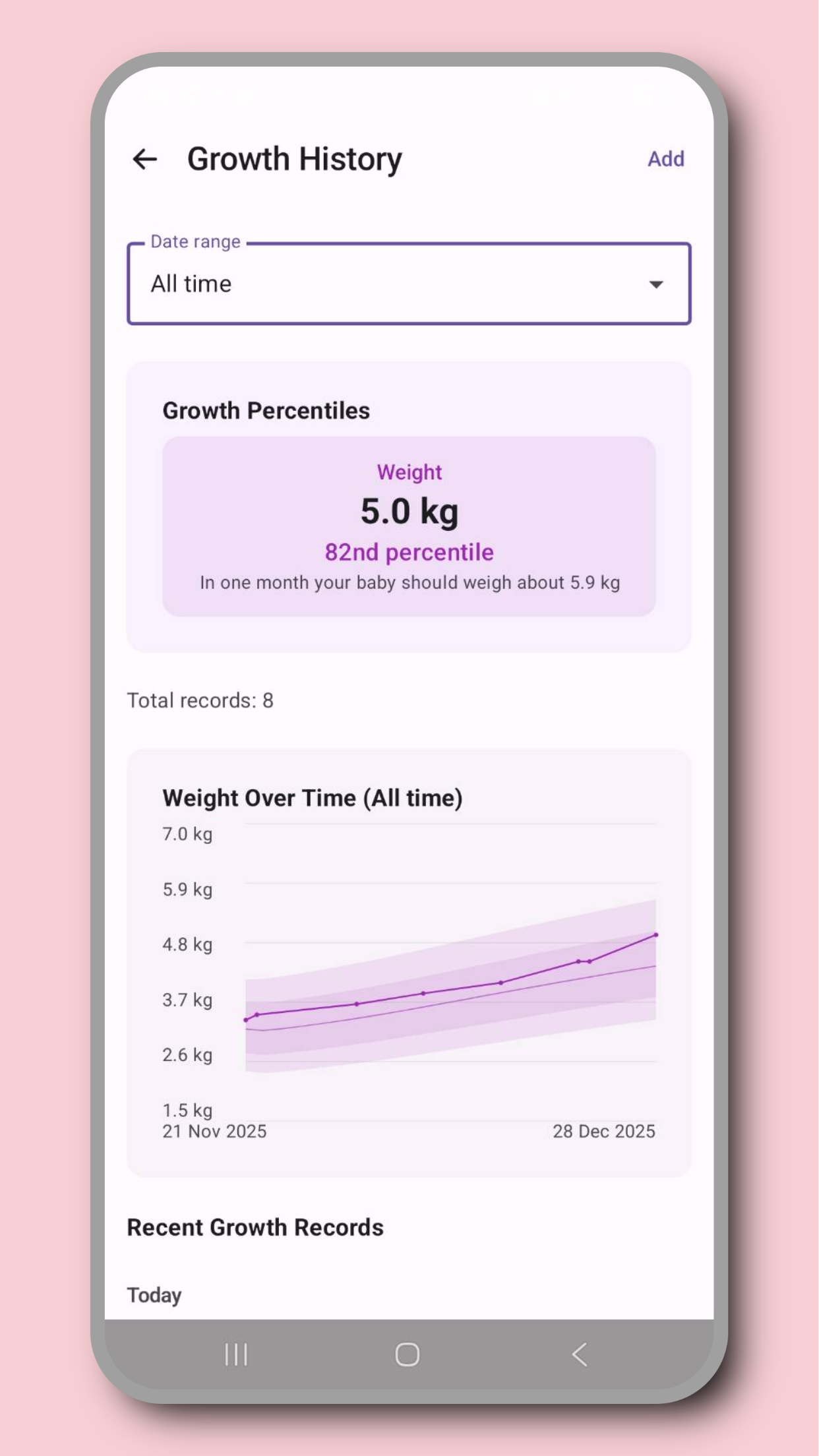
Clicking on a dashboard widget will show you the history view for that data type. Here we see the growth history, showing the baby's weight changes over time, along with percentiles and future growth projections. The graph shows the baby's weight relative to percentiles, allowing you to be sure your baby is developing as expected. At the bottom of this page, a list of all growth events are displayed, allowing you to see a detailed list of all events or to delete specific events. At the top, you can select the date range to display (defaulting to 7 days).

Handover

Creating a handover screenshot

Handover

Creating a handover

Generate a clear "what changed" summary so the next caregiver can step in immediately.

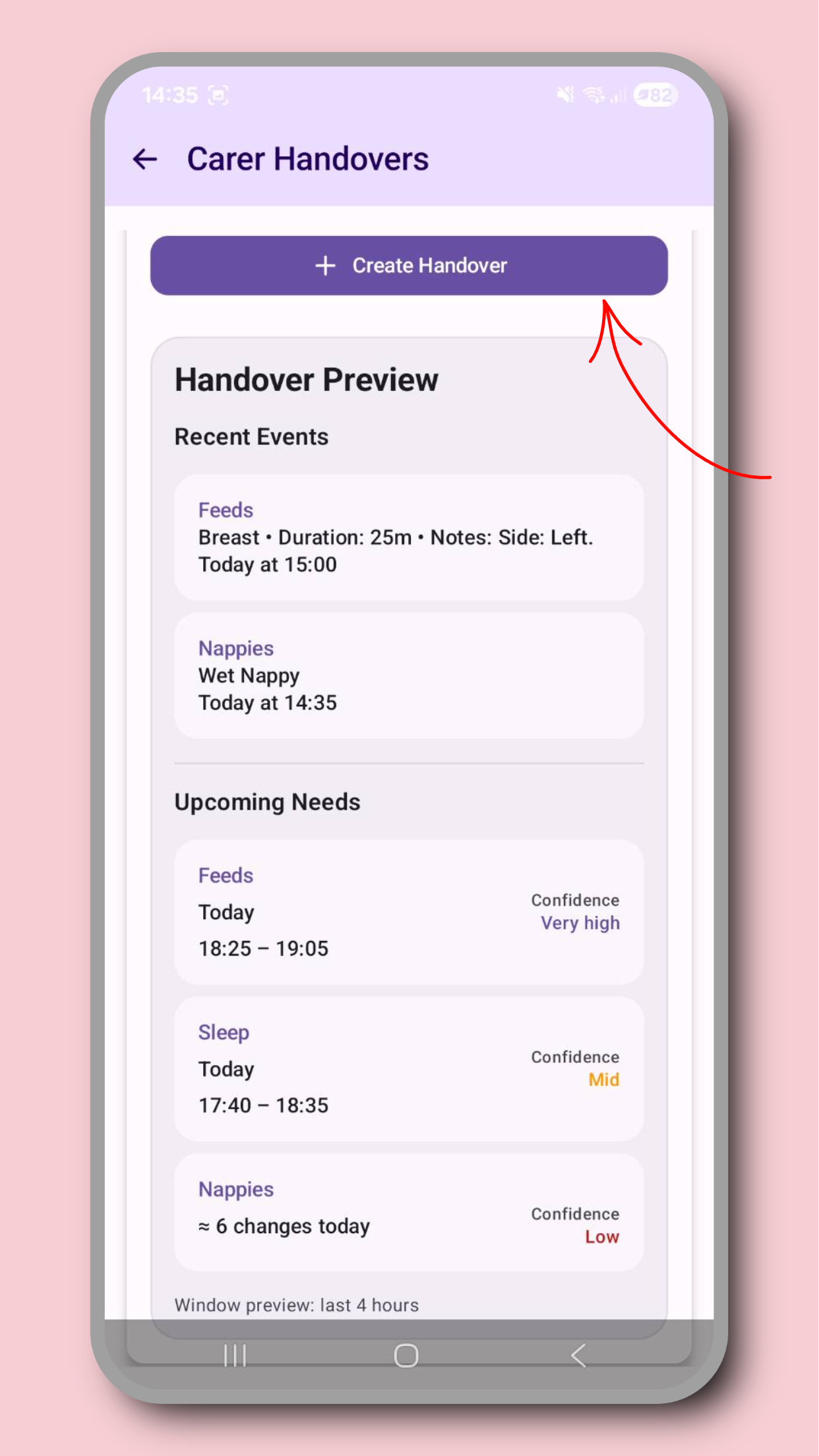
Handovers are the heart of the Pebbi. They allow you to seamlessly handover care to others through instant but detailed summaries of your care window. If you're off to sleep and your partner is taking over, use a handover to quickly catch them up on the day's events. Handovers are accessible through the bottom navigation menu or the dashboard top menu. When creating a handover you can see a preview of the most relevant events to make sure you've not missed anything. You can also add handover notes to cover anything not included in the handover, like specific upcoming medication or how your baby's mood has been today.
Viewing handovers screenshot

Handover

Viewing handovers

Review recent summaries to understand what changed without scrolling through every log.

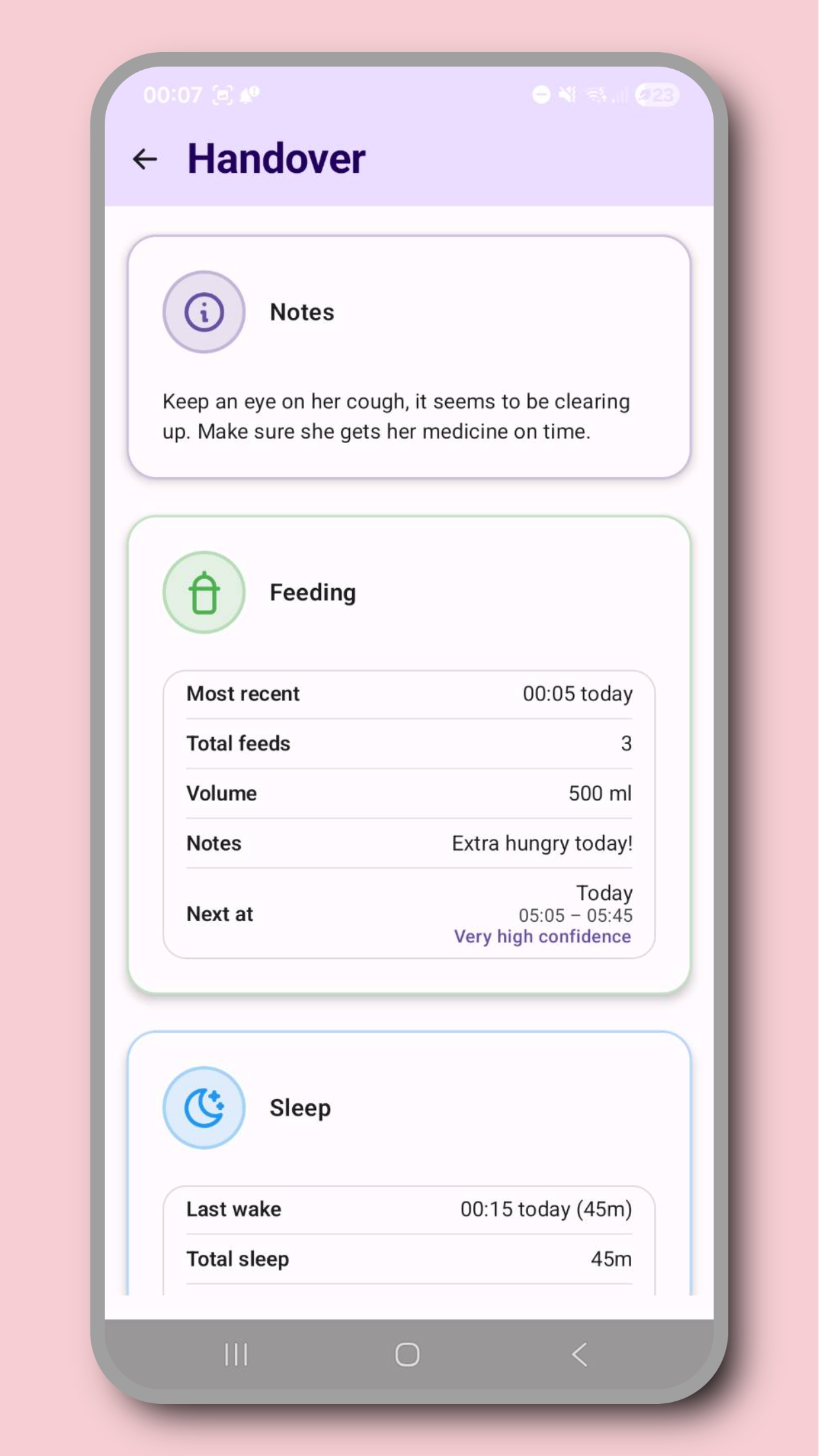
Handovers are the heart of the Pebbi. They allow you to seamlessly handover care to others through instant but detailed summaries of your care window. If you're off to sleep and your partner is taking over, use a handover to quickly catch them up on the day's events. Handovers are accessible through the bottom navigation menu or the dashboard top menu. If you have notifications enabled, you'll also get a prompt when you have a new handover so you can be sure not to miss anything important. Your handovers will be shown on the handover page, where you can tap a handover to view it. This will also update the handover for the sender, marking it as "seen". In the handover, you'll see a summary for each event category, showing you what happened, what's likely upcoming, and any extra notes to be aware of.

Premium

Upgrading to Premium screenshot

Premium

Upgrading to Premium

Unlock Premium Household features for larger care teams, AI summaries, predictions, and photos.

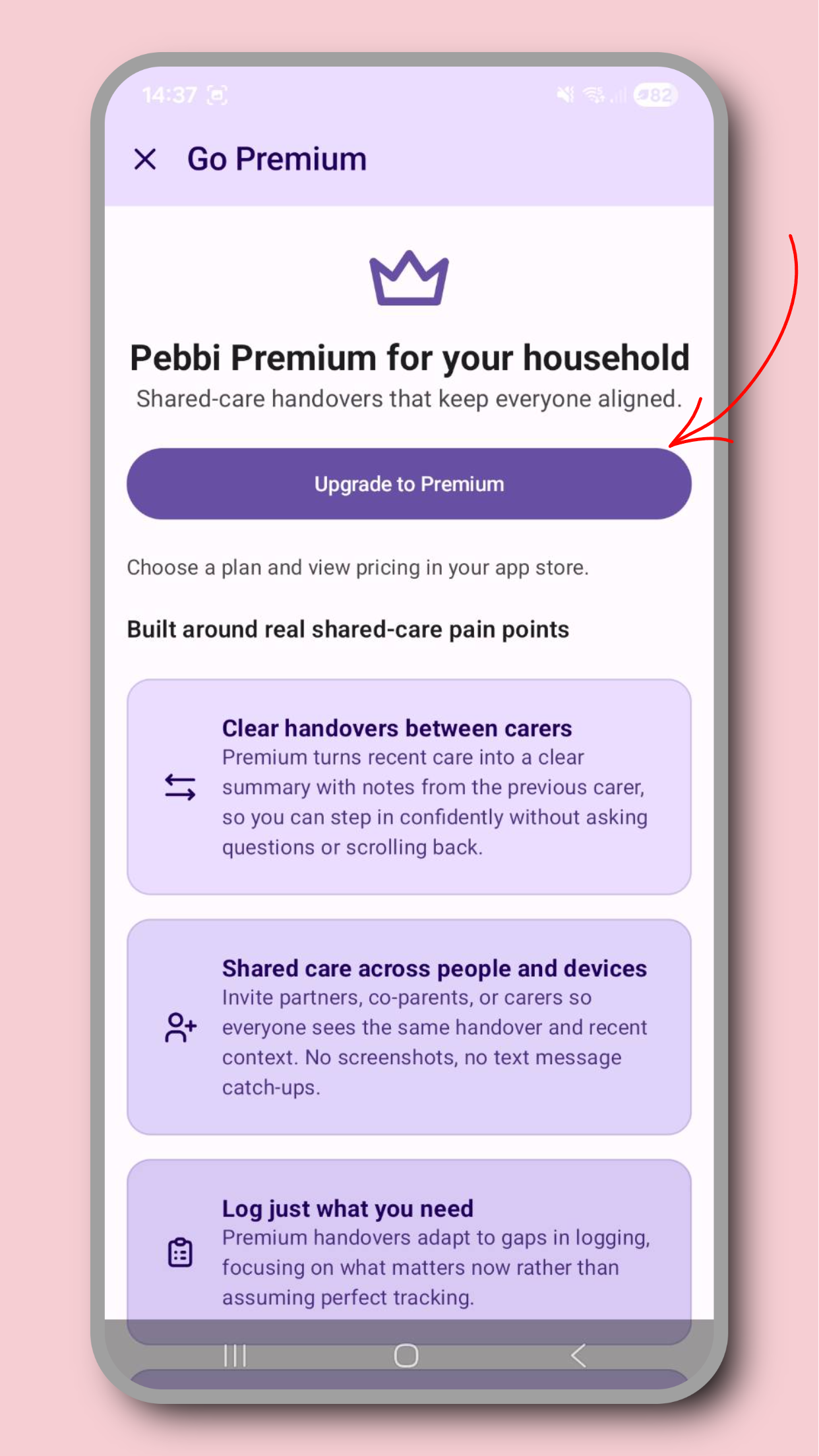
Pebbi's free plan includes multi-device sync for up to 2 carers with full core tracking, handovers, reminders, and CSV export. If you need more, Premium Household extends to up to 5 carers and 5 babies, and unlocks AI handover summaries, feed/sleep/nappy/pump predictions, growth projections, baby profile photos, symptom photos, and premium trend insights. You can upgrade through the settings menu via the dashboard menu. You'll only ever need to purchase premium once per household, all other carers can join your membership for free and take full advantage of premium features. Payments are handled by the app store directly and securely, and no payment information is shared with Pebbi other than confirmation of your transaction. Pricing will be location specific. We often offer free trials and other promotions so keep an eye out for those. If you have any questions about premium, please reach out to [email protected], we'd love to hear from you.

Household

Creating a household screenshot

Household

Creating a household

Set up a shared space so everyone works from one shared timeline.

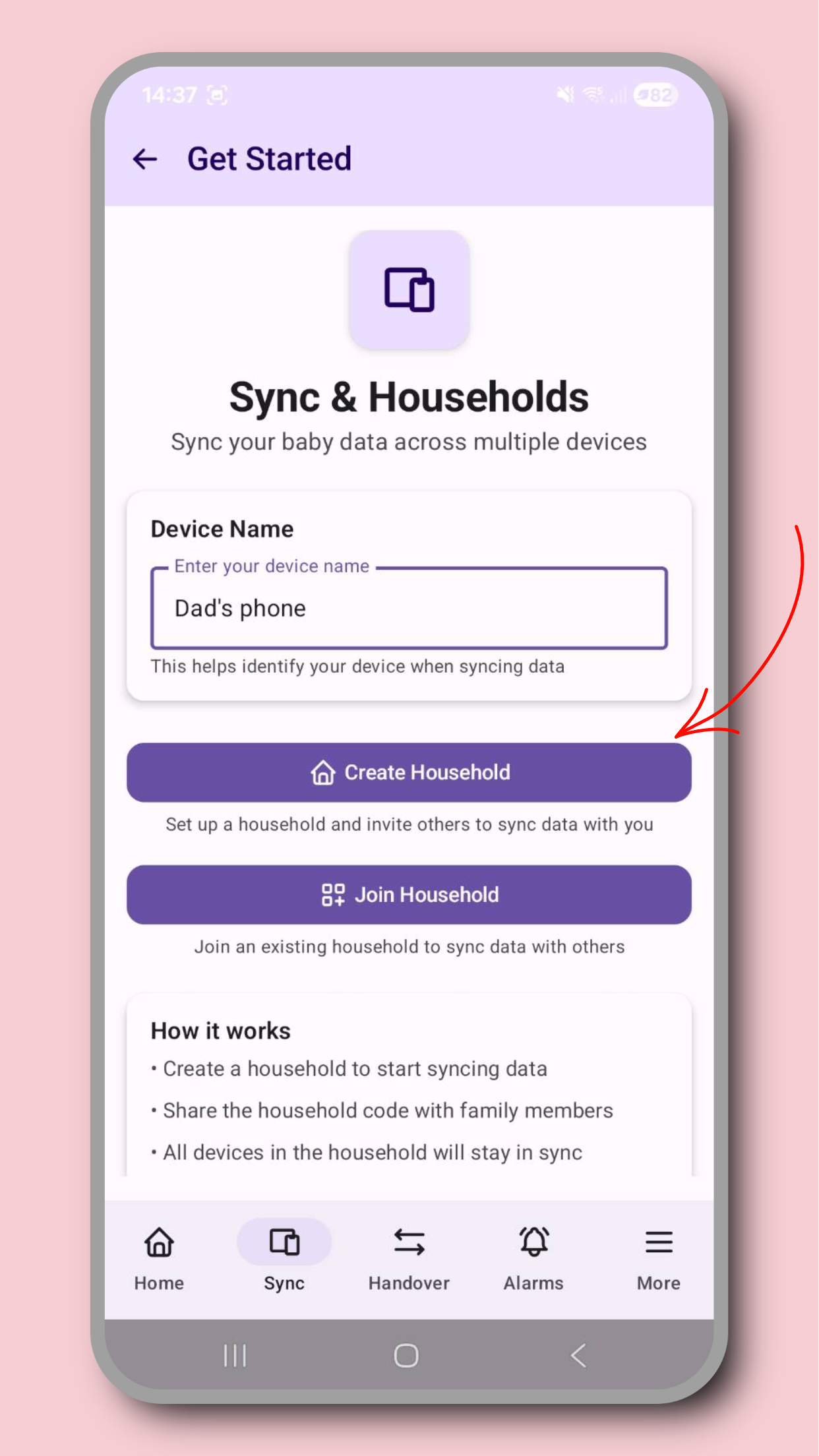
Once you've activated your premium membership you can create a household via the Sync menu, accessible through the bottom nav menu. Name your device so other members of your household will know who you are, then tap 'Create Household'. You'll be taken to a new page for managing your household, where you can invite other trusted carers with QR codes, see important event logs for your household (such as users joining or leaving), or manage your household devices. As the household owner, you have full control over the devices in your household. Promote other users to admins, remove or add devices, or pause syncing for specific devices to temporarily halt data sharing.
Inviting others to your household screenshot

Household

Inviting others to your household

Add partners, grandparents, and carers so handovers stay consistent.

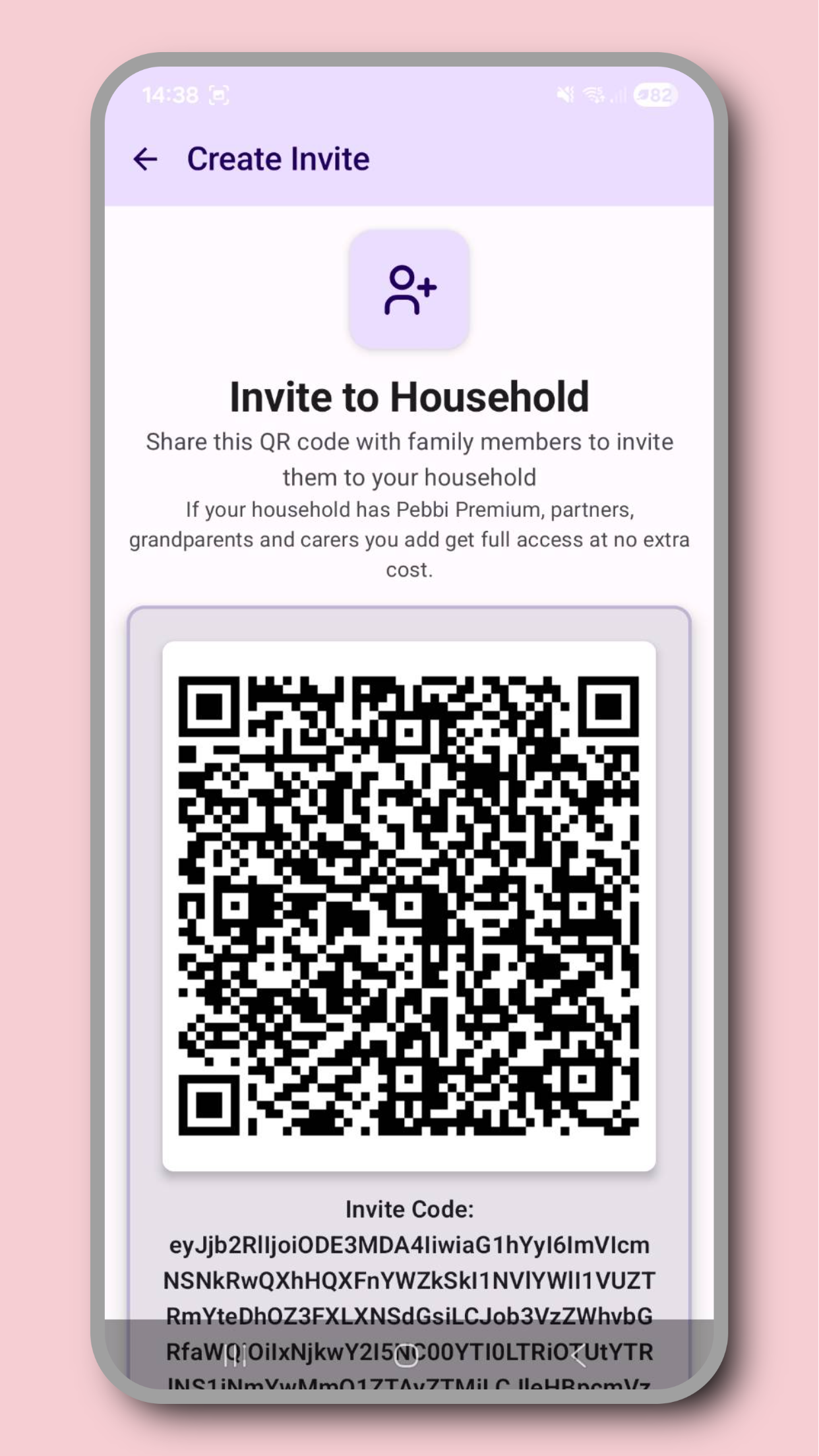
Once you've created a household or been added as an admin to someone else's household, you'll be able to create invite links to add new users. You can do this from the Sync menu, accessible from the bottom nav menu. Simply click on the 'Create Invite' button and you'll see a QR code invite. At the bottom of this page are detailed instructions on how exactly to invite users. Other users can scan your QR code inside Pebbi, or you can share the invite code for them to enter manually if you want to add someone remotely. Once they've joined, you'll see their device immediately the next time you access your Manage Devices page. Data will start syncing to devices as soon as they are added to the household.
Joining a household screenshot

Household

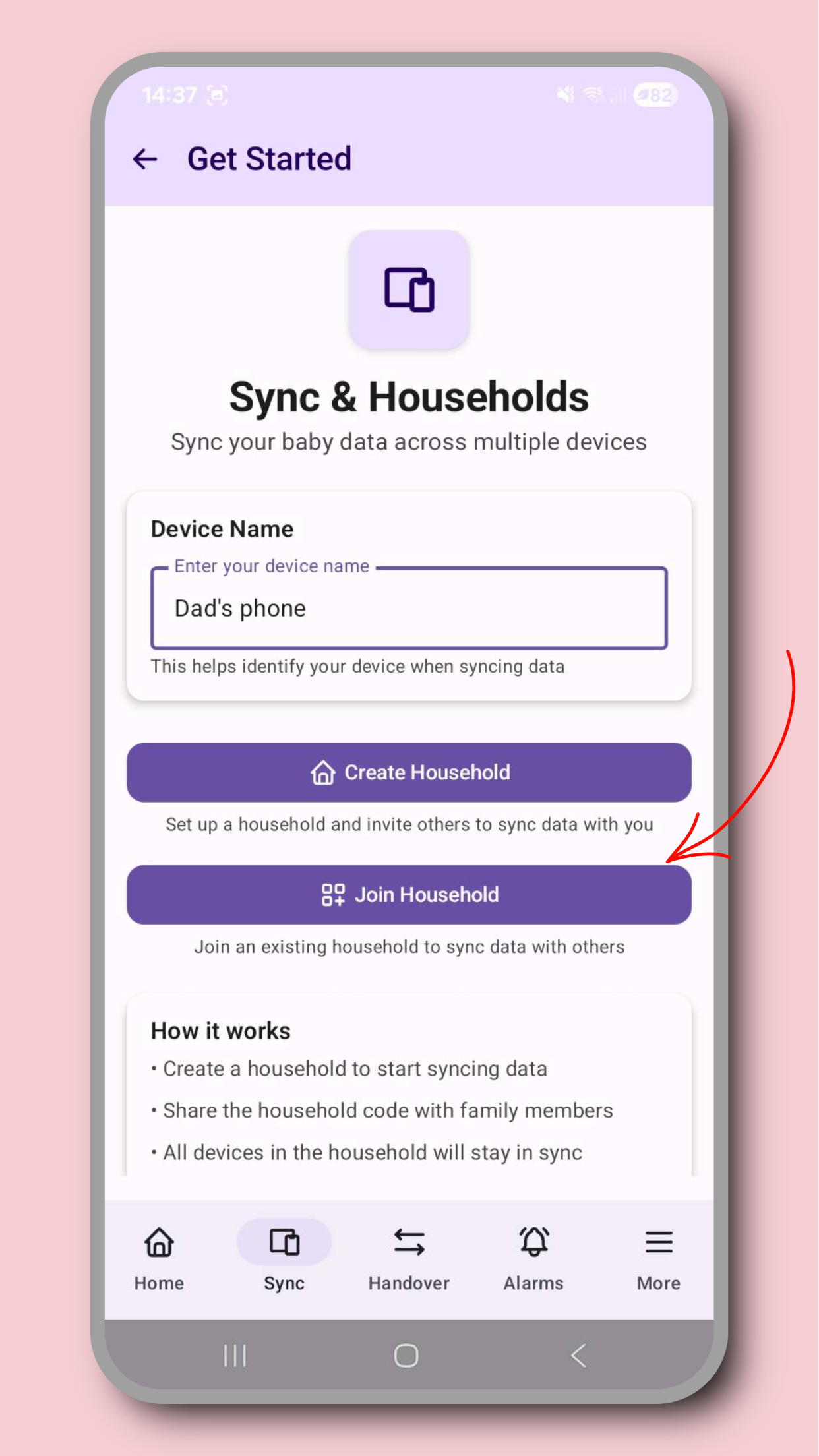
Joining a household

Join an existing household so you can view and log in the shared timeline.

If you'd like to join someone else's household, an admin needs to send you an invite. They can do this by either sharing a QR code with you, or an invite code. Open Pebbi and navigate to the Sync menu, accessible through the bottom nav menu. Here, you'll see the option to either join a household or create a new household. Name your device so that other household members know who you are, and then select Join Household, and you'll be taken to a page where you can scan a QR code or enter an invite code. Once you've scanned or entered the code, confirm your household join, and that's it! You'll be taken to the household page where you can see the other household members. Data will now be syncing between your devices automatically, but may take a few minutes to catch you up to speed depending on how many events already exist.

Sync

Syncing data across devices screenshot

Sync

Syncing data across devices

Log offline when needed, then automatically sync so your household stays aligned.

Syncing is free for up to 2 carers. Premium Household extends this to up to 5 carers. Data is synced automatically and in real time between all members of a household, so all you need to do is join or create a household to get started. Some devices in a household might be 'paused' to temporarily halt data syncing. This might be useful if you want to temporarily stop a carer receiving or sending events to the household, but don't want to remove them completely.

Insights

Predictions screenshot

Insights

Predictions

Learn how Pebbi surfaces patterns and gentle predictions without overwhelming charts.

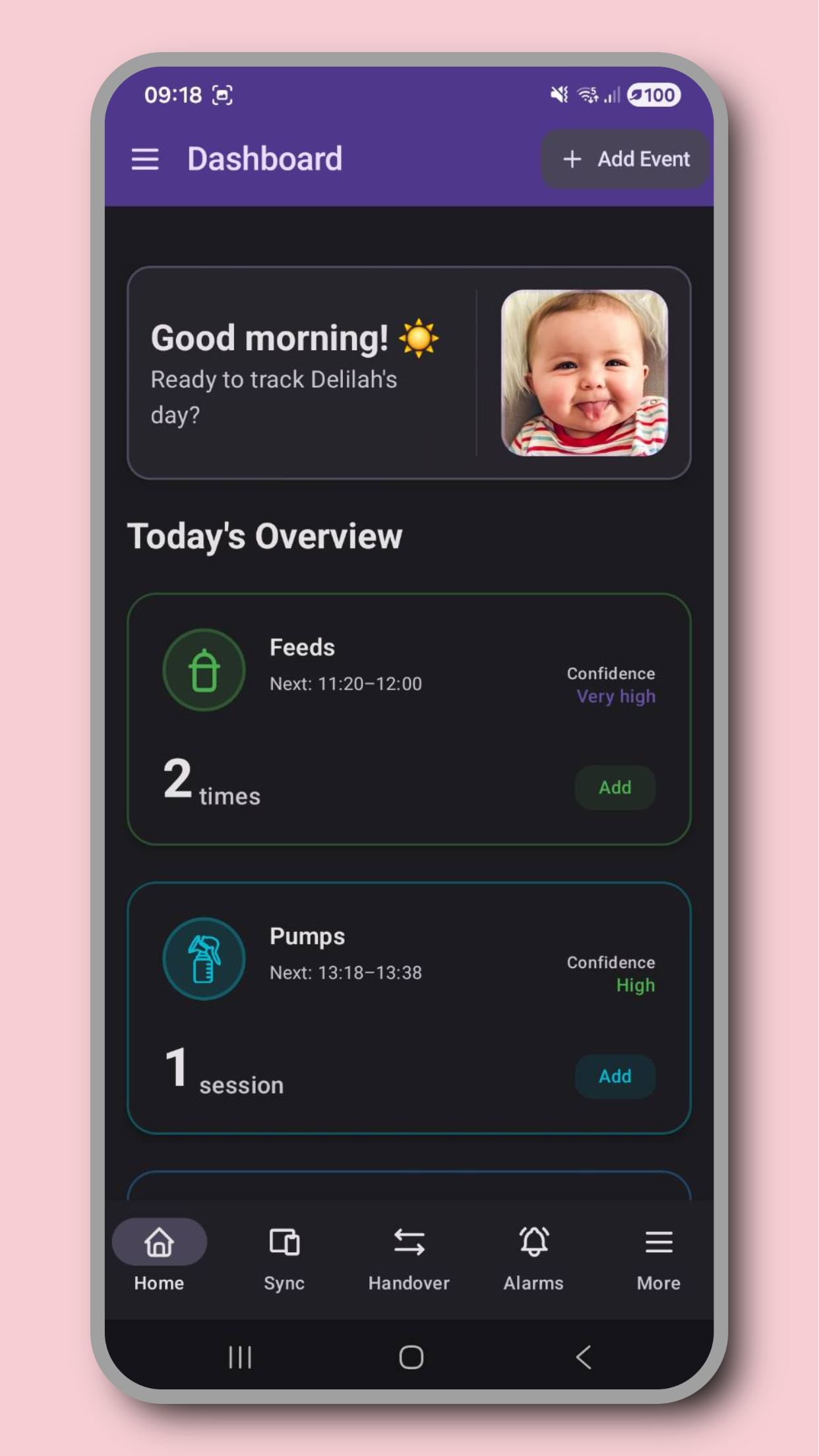
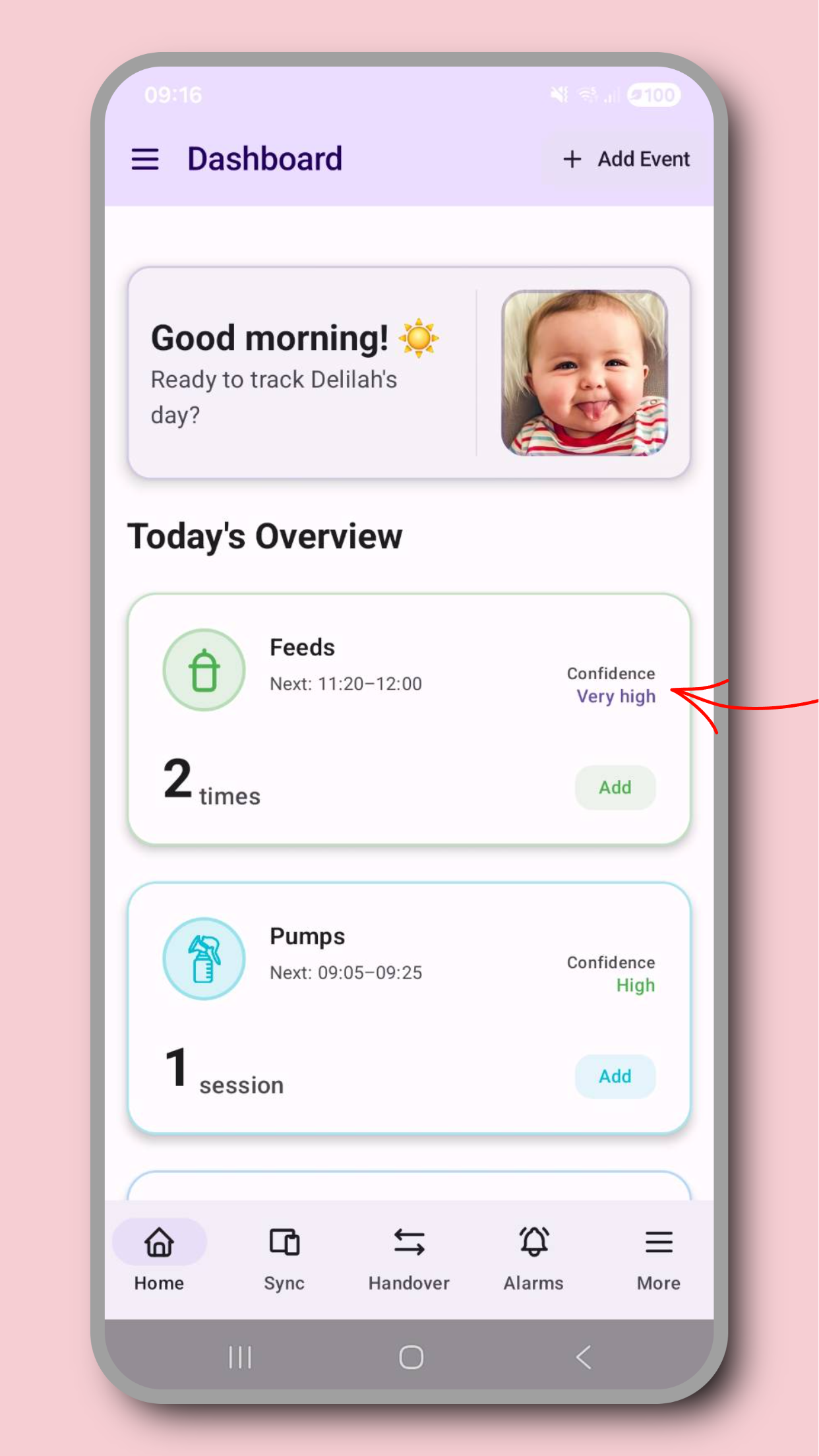
Pebbi can give useful predictions of upcoming events for your baby. Every baby is unique, so these might look a little 'off' to start with, but Pebbi learns from your data over time. The more you log the more accurate the predictions will become. But remember, these are only predictions. Don't rely on these too heavily for important events, your baby's needs don't follow a schedule!

Reminders

Scheduling reminders screenshot

Reminders

Scheduling reminders

Set up gentle reminders so the whole care team stays on track.

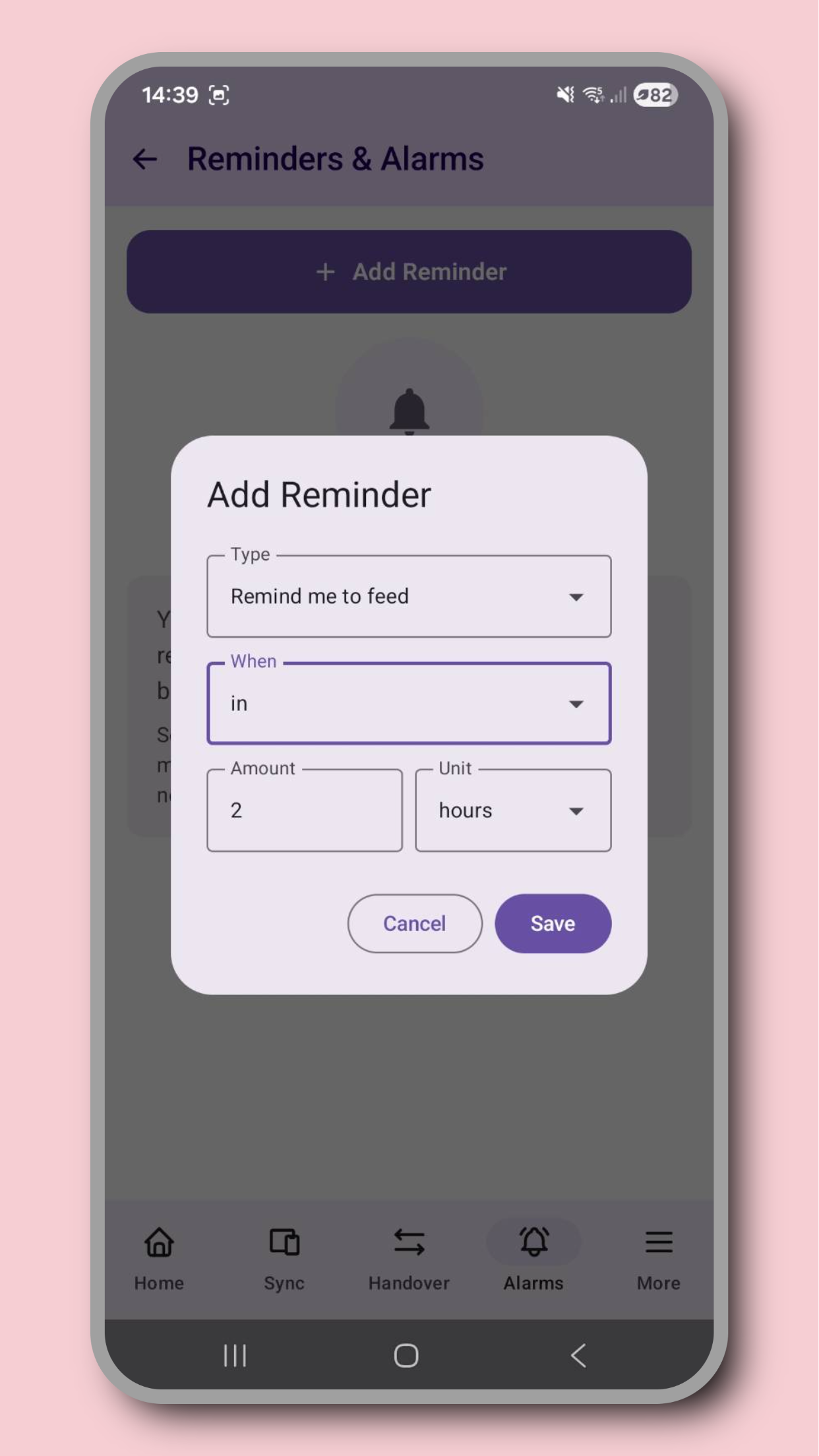
You can access the reminders page from the bottom nav menu. This page allows you to set reminders for a range of events, or custom events that you define. You can set 'in', 'at' or 'every' alarms, meaning alarms that go off 'in' a number of hours, 'at' a specific time, or 'every' time interval (e.g. a repeating alarm). These are useful for remembering medication, sleep schedules, doctors appointments, or just as a reminder to log your baby's day. Once you have alarms, this page will show you any upcoming or expired alarms, which you can edit or delete. But remember, if you haven't enabled the 'exact alarms' permission, then Pebbi can't alert you at a specific time. Be sure not to rely too heavily on alarms for important events like medication schedules unless you've enabled this permission through your phone's app settings page.

Data

Exporting data screenshot

Data

Exporting data

Export logs for daycare handovers, clinics, or your own records when needed.

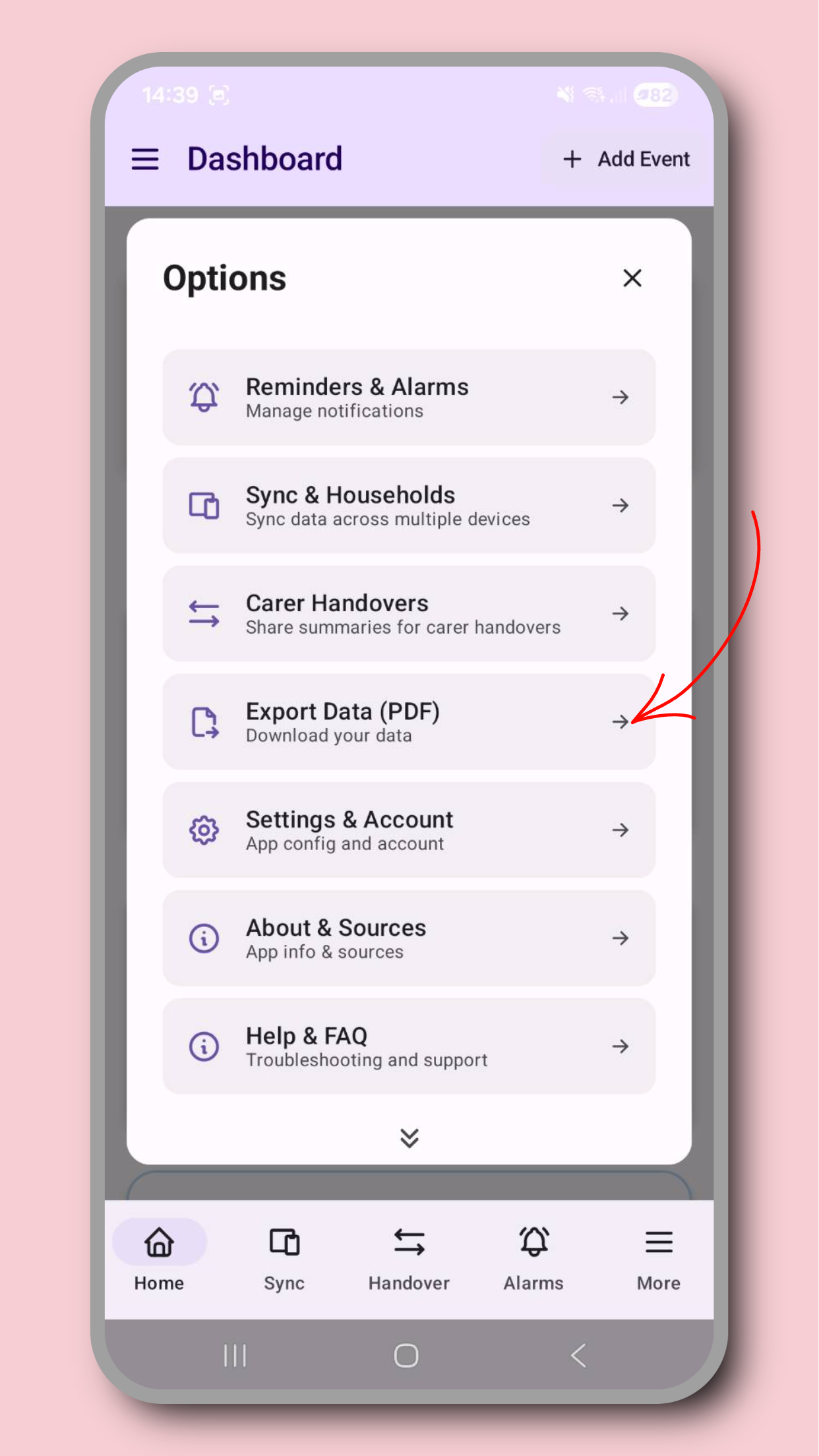
The dashboard menu allows you to export your data to a PDF. This can be really useful for doctors appointments, midwife meetings, or to bring someone up to date without adding them to your household. You control the data you want to export, the timeframe to cover, and who you share this data with.

Settings

Updating settings screenshot

Settings

Updating settings

Tune Pebbi to your preferences so it fits your routines and your household.

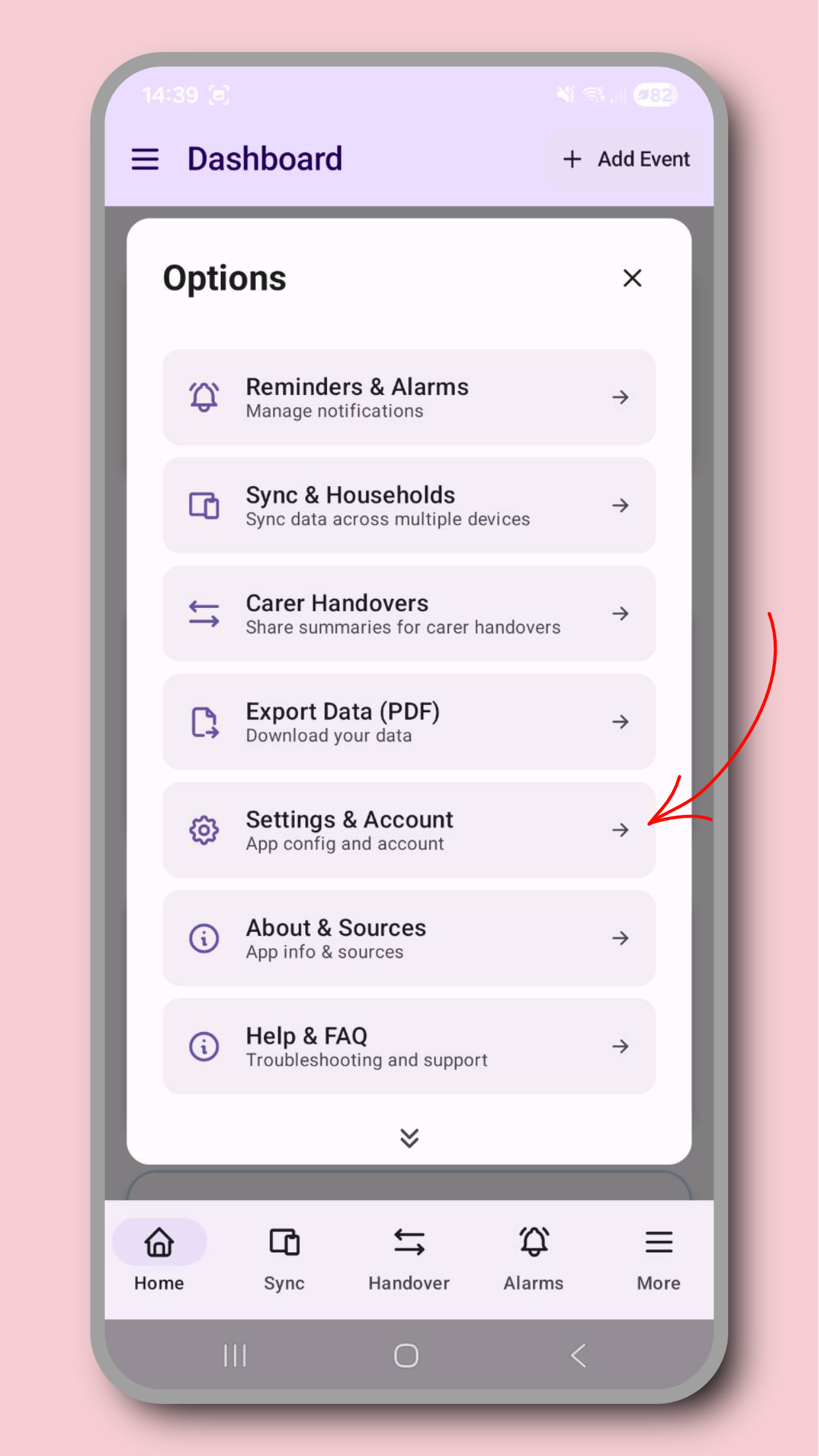
During onboarding you would have set a number of app settings such as your theme, units of measurement, and notification preferences. You can change these at any time through the settings menu, accessible via the dashboard top menu. You can also manage your premium status, disable in-app animations, or delete all of your data. But be careful, deleting your data cannot be undone!

Privacy

Deleting your data screenshot

Privacy

Deleting your data

Remove your data when you want. Privacy-first means control stays with you.

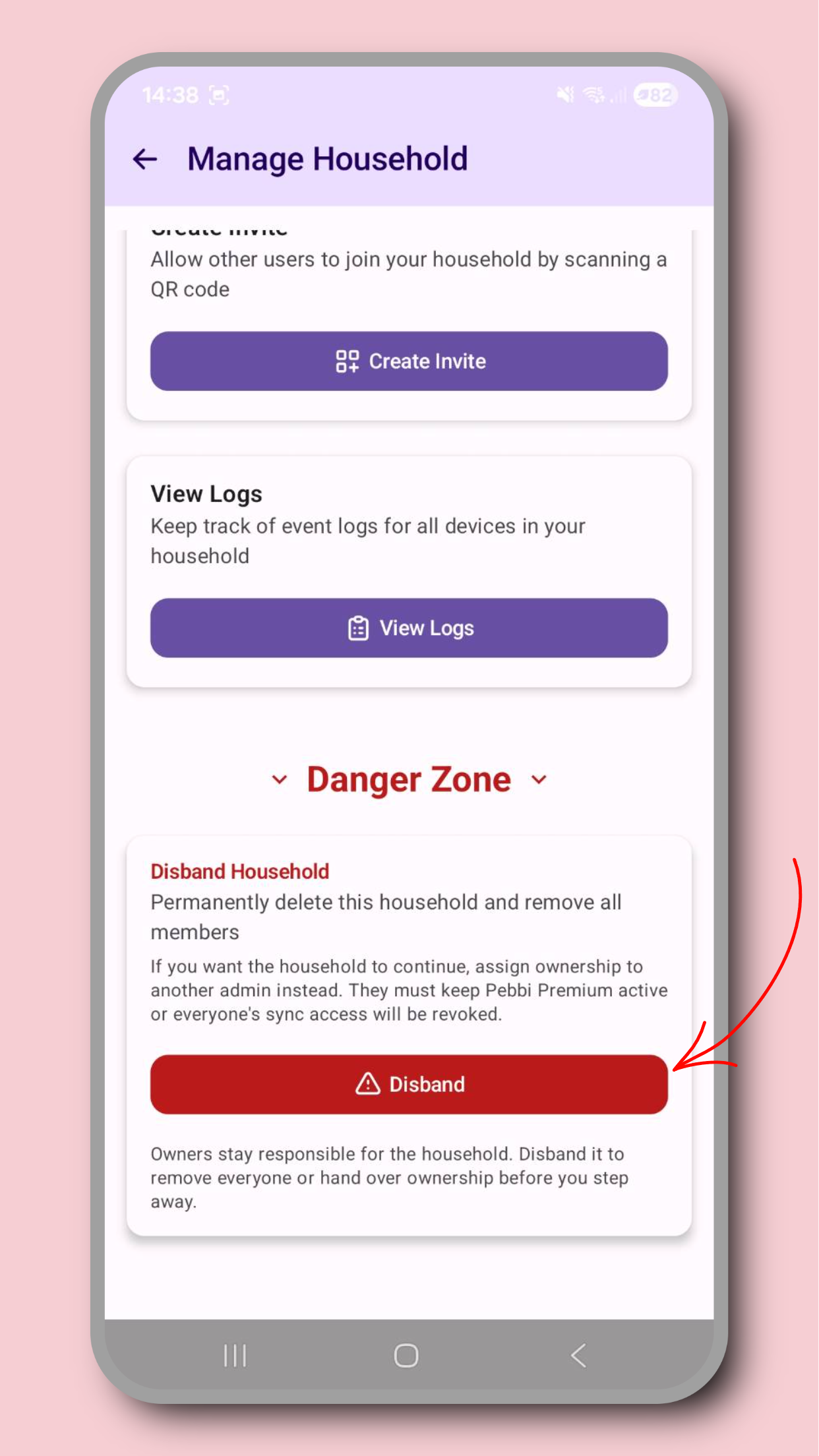
You are always in charge of your data, so if you'd like to delete your data you are welcome to do so. If you're a member of a household you can leave through the Sync menu. If you own a household, you can choose to either disband the whole household, or to switch ownership to another household admin. To delete all app data, use the "Delete Data" option through the app settings page, accessible through the dashboard top menu. You are also welcome to get in touch via [email protected] for help in deleting your data.

Feedback

Providing feedback screenshot

Feedback

Providing feedback

Share what's working and what isn't so we can improve Pebbi for shared care.

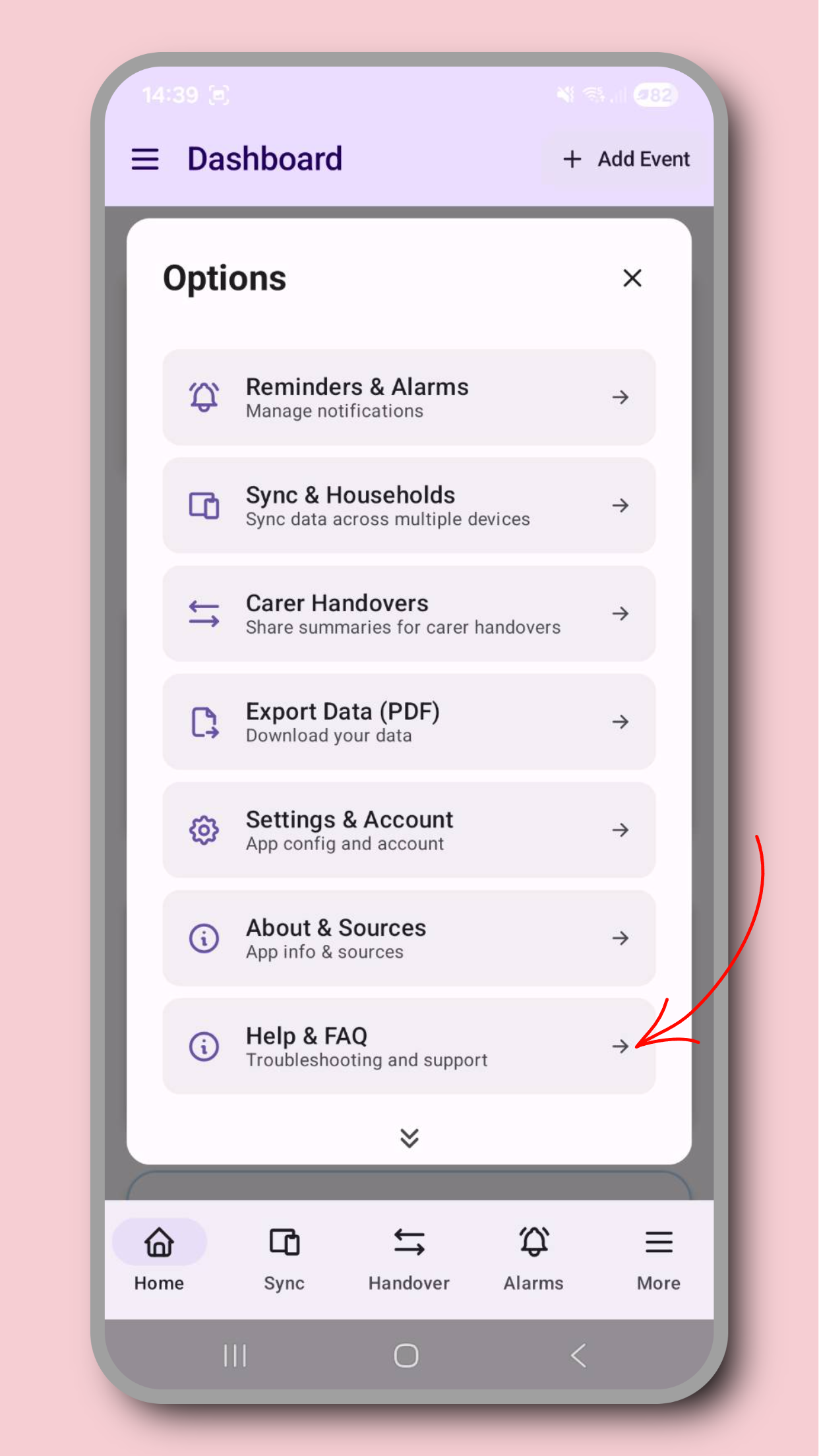
We'd love to hear any feedback you have about Pebbi, good or bad. We're always striving to make Pebbi the best it can be. Please get in touch via the 'Help & FAQ' menu for in-app support, or drop us an email at [email protected] to share your thoughts. You can also rate the app in the app store, your support goes a long way to helping others discover and benefit from Pebbi's shared care expertise.